

Purge for Mac
Developer-friendly disk cleaner that scans system caches, build artifacts, and dev tool junk with safety-level labels and one-click cleanup.
By jithin-sabu. Free and open source, MIT licence.
Purge at a glance
- Version
- 1.9.0
- Released
- 9 October 2026
- Download size
- 8.4 MB
- Works on
- Apple silicon and Intel
- Licence
- MIT
- Category
- System Tools
- Developer
- jithin-sabu
- GitHub stars
- 1.1K
About Purge
Free up your Mac, safely. Clears the cache and junk it piles up on its own. Open source, and everything goes to the Trash, so nothing is ever lost.
Screenshots
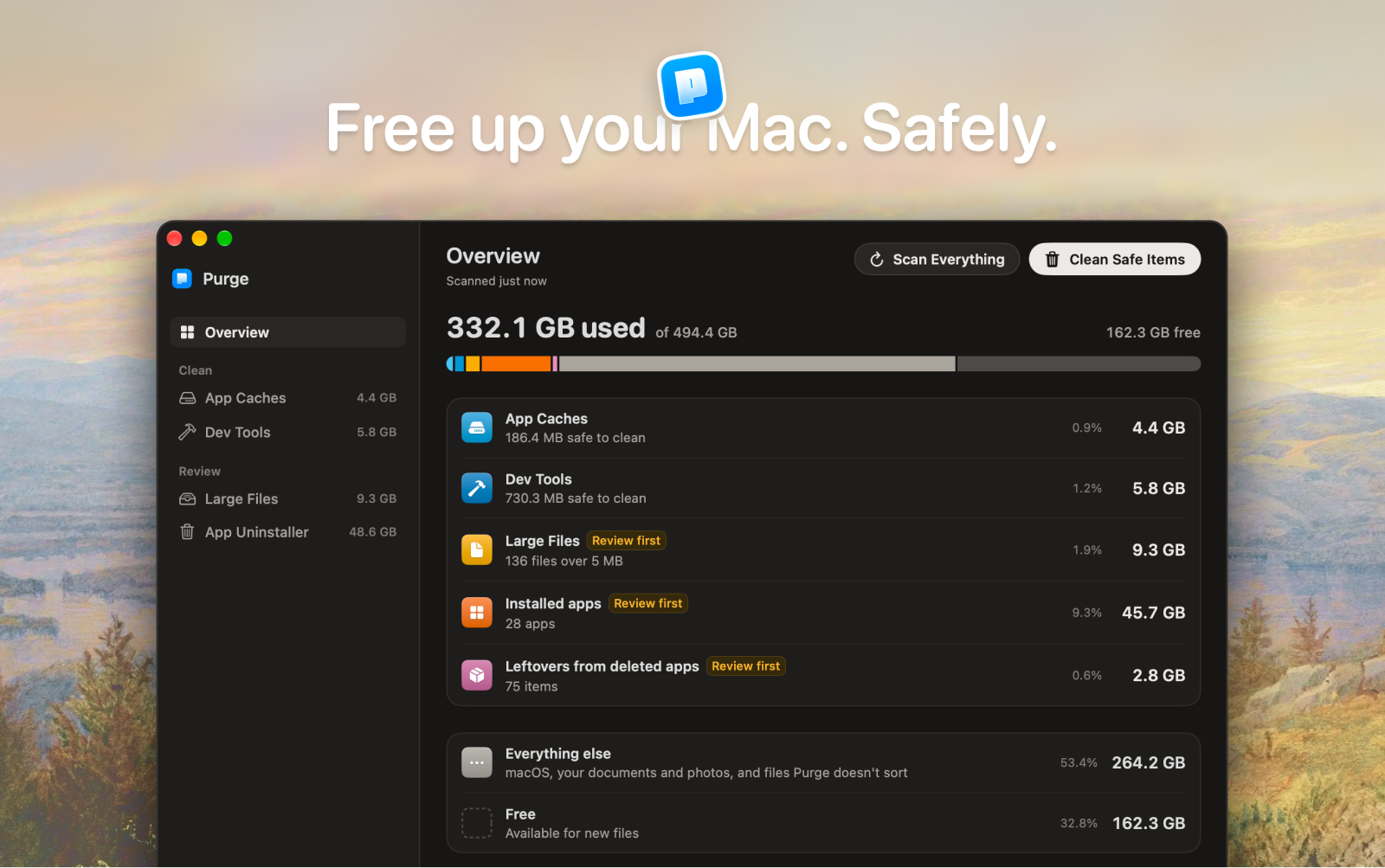
How to install Purge on a Mac
- Get OpenDMG. It is a free app store for open source Mac apps. Download OpenDMG.
- Search for Purge and press Get. OpenDMG downloads version 1.9.0 from jithin-sabu's own GitHub release.
- Open it. The download is checked against its SHA-256 fingerprint and its signature is checked on your Mac before it lands in Applications.
Updates to Purge show up in OpenDMG and install with one button. No account is needed.
Prefer to do it by hand? The developer's file is on GitHub: Purgev1.9.0.dmg (8.4 MB).
What is new in Purge 1.9.0
## Release highlights

- **Restart to Update**: A new switch in Settings > Updates, "Download and install updates automatically", downloads new versions in the background and installs them the next time Purge quits. Once an update is ready, Check for Updates in the Purge menu, the menu bar menu and the About tab becomes Restart to Update, so you can install it straight away. It's off by default, so nothing changes unless you turn it on.
- **Remove unused simulator runtimes**: Dev Tools has a new Simulator Runtimes section. Each runtime is a copy of iOS, watchOS, tvOS or visionOS that Xcode keeps after downloading it, usually about 8 GB. A runtime is Safe when no simulator uses it, Xcode doesn't build new simulators on it, and it hasn't been used in 30 days. Removing one goes through Apple's own `simctl`, needs no password, and works even after Xcode is deleted. Runtimes are never part of a one-click or scheduled clean, because the only way back is downloading them again.
- **Uninstall with Purge from Finder and the Dock**: Drop an app on Purge's Dock icon, or right-click it in Finder and choose Uninstall with Purge, and the App Uninstaller opens with that app and its leftovers ready to review. Nothing moves until you click Move to Trash. macOS turns new Finder items off by default, so there's a switch for it in Settings > Finder.
…
More System Tools apps
-
 PearcleanerApp Cleaner and Uninstaller Tool
-
 OpenInTerminalFinder toolbar tool for opening the current folder in a terminal
-
 PureMacFree open-source system cleaner with privacy protection
-
 DockDoorWindow peeking for macOS
-
 LatestApp update checker that notifies you of available updates for installed applications
-
 DorsoPosture reminder that progressively blurs your screen when you slouch