
Ieum for Mac
On-device live meeting captions and translation in English, Korean, Japanese, and Chinese.
By stoneidev. Free and open source, Apache-2.0 licence.
Ieum at a glance
- Version
- 0.12.0
- Released
- 13 November 2026
- Download size
- 2.7 MB
- Works on
- Apple silicon and Intel
- Licence
- Apache-2.0
- Category
- Audio and Music
- Developer
- stoneidev
- GitHub stars
- 1
About Ieum
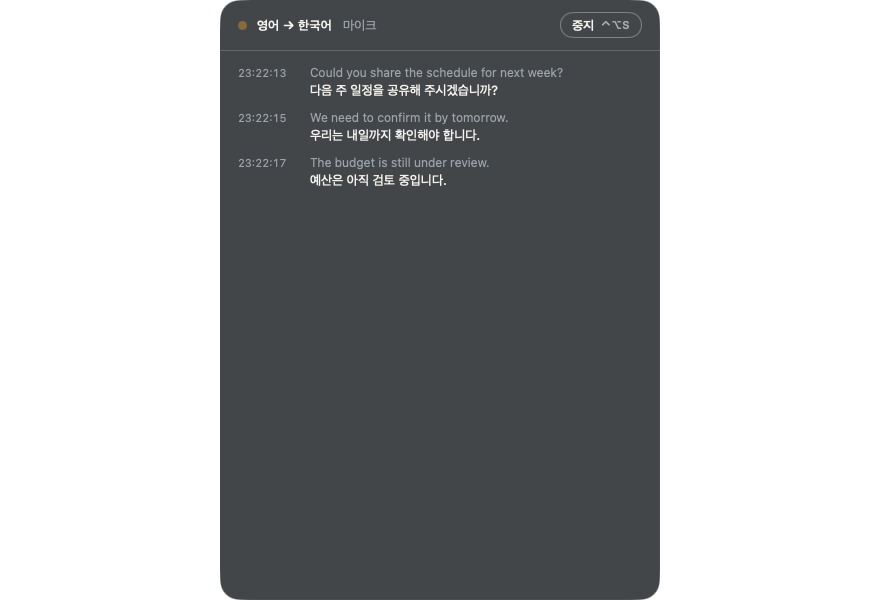
Ieum (이음): offline live captions and translation for Mac meetings between English, Korean, Japanese and Chinese. On-device, free, open source.
Screenshots

How to install Ieum on a Mac
- Get OpenDMG. It is a free app store for open source Mac apps. Download OpenDMG.
- Search for Ieum and press Get. OpenDMG downloads version 0.12.0 from stoneidev's own GitHub release.
- Open it. The download is checked against its SHA-256 fingerprint and its signature is checked on your Mac before it lands in Applications.
Updates to Ieum show up in OpenDMG and install with one button. No account is needed.
Prefer to do it by hand? The developer's file is on GitHub: Ieum.dmg (2.7 MB).
What is new in Ieum 0.12.0
- Screen-share safe. The captions (and Ieum's settings, setup, What's new and update windows) are hidden from screen sharing and recording by default, so the people on the other side of a Zoom, Meet or Teams call do not see your translation bar when you share your whole screen. It does not appear in your own screenshots and recordings either. Checked with ScreenCaptureKit on macOS 26 (Scripts/check-share-safe.swift repeats the check on your Mac); not checked on macOS 14 or 15 or inside every app, and a single shared window and system dialogs are not covered, so try a test call first. Turn it off in Settings > Display > Screen sharing, or in the ⋯ menu.
- The bar steps aside. While captions run, when the pointer comes near the subtitle bar it turns see-through and lets your clicks pass to the window behind (default), or moves to the opposite edge of the screen and comes back when you follow it. The buttons at the right end of the bar stay solid. Settings > Display > Stay out of the way.
---
- 화면 공유 안전. 자막(그리고 이음의 설정, 권한 점검, 새로운 기능, 업데이트 창)은 기본적으로 화면 공유와 녹화에서 숨겨집니다. Zoom, Meet, Teams에서 화면 전체를 공유해도 상대방은 번역 자막 바를 보지 못하고, 내 스크린샷과 녹화에도 찍히지 않습니다. macOS 26의 ScreenCaptureKit으로 확인했고(Scripts/check-share-safe.swift로 내 Mac에서 같은 확인을 반복할 수 있습니다), macOS 14·15와 모든 앱에서 확인한 것은 아니며 창 하나만 공유하는 경우와 시스템 대화상자는 해당 없으니 먼저 테스트 통화로 확인하세요. 설정 > 화면 > 화면 공유나 ⋯ 메뉴에서 끌 수 있습니다.
…
More Audio and Music apps
-
 MonitorControlAdjust external monitor settings
-
 FluidVoiceVoice-to-text app with AI enhancement
-
 VoiceInkReal-time speech-to-text app
-
 eqMacSystem-wide audio equalizer and volume mixer
-
 LyricsXDisplay lyrics for iTunes/Spotify
-
 FreeFlowPush-to-talk speech-to-text tool that inserts polished transcripts into any app