

FileFluss for Mac
Dual-panel file manager with cloud storage support for seamless file operations.
By rana-gmbh. Free and open source, GPL-3.0 licence.
FileFluss at a glance
- Version
- 1.5.1
- Released
- 2 October 2026
- Download size
- 11 MB
- Works on
- Apple silicon and Intel
- Licence
- GPL-3.0
- Category
- System Tools
- Developer
- rana-gmbh
- GitHub stars
- 277
About FileFluss
Handle files easily across cloud storage providers and your local hard drive
Screenshots
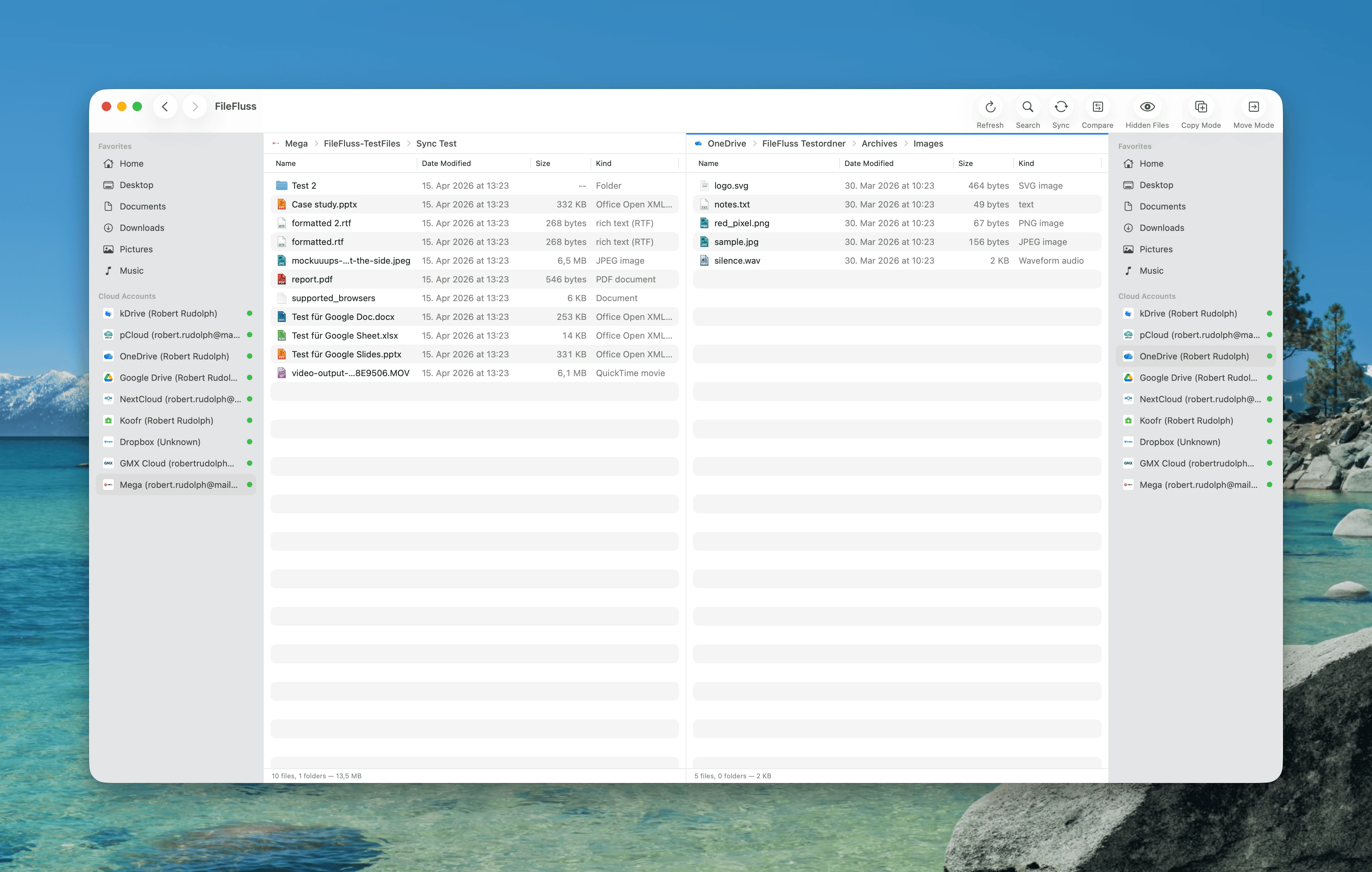
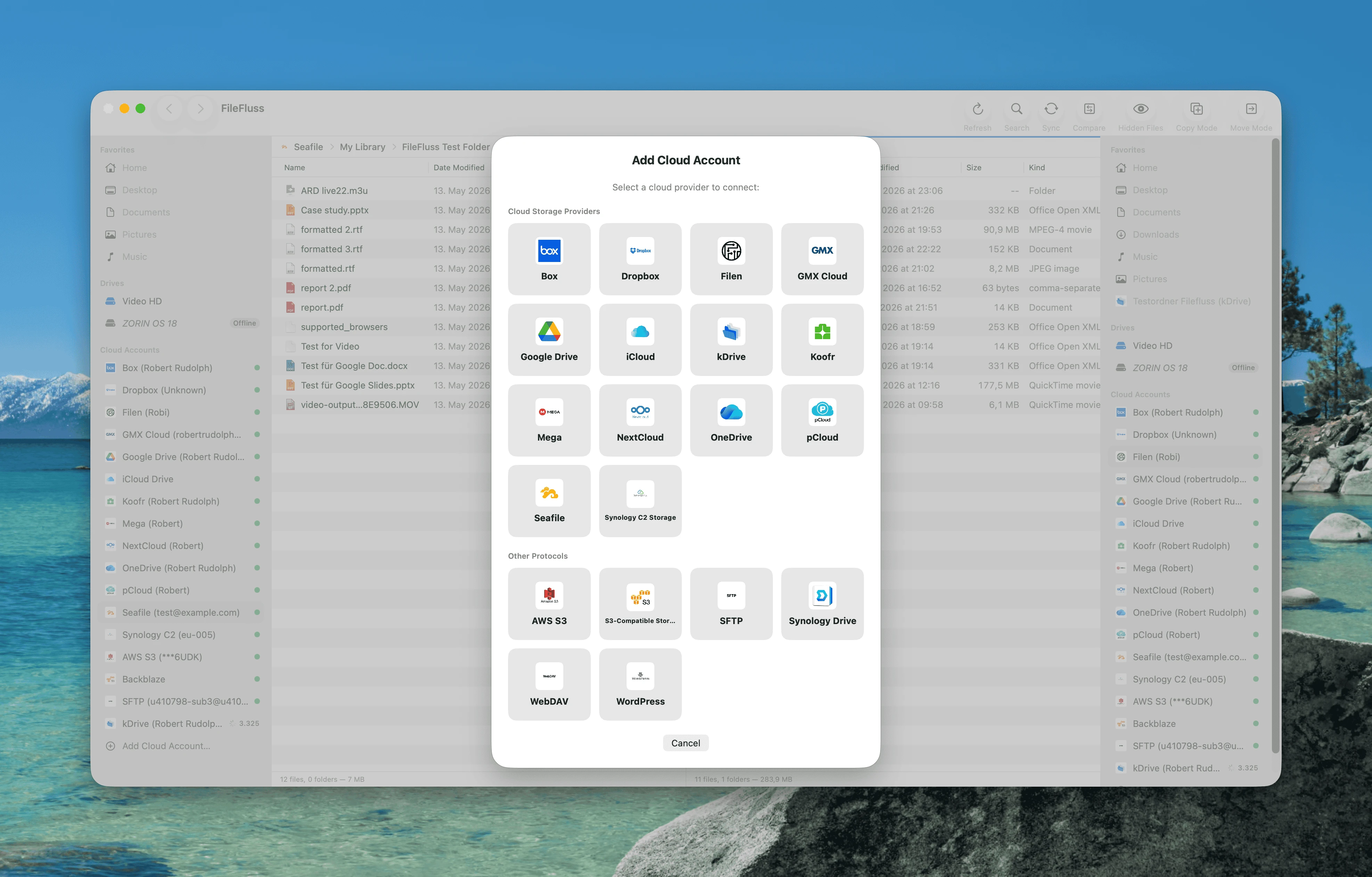
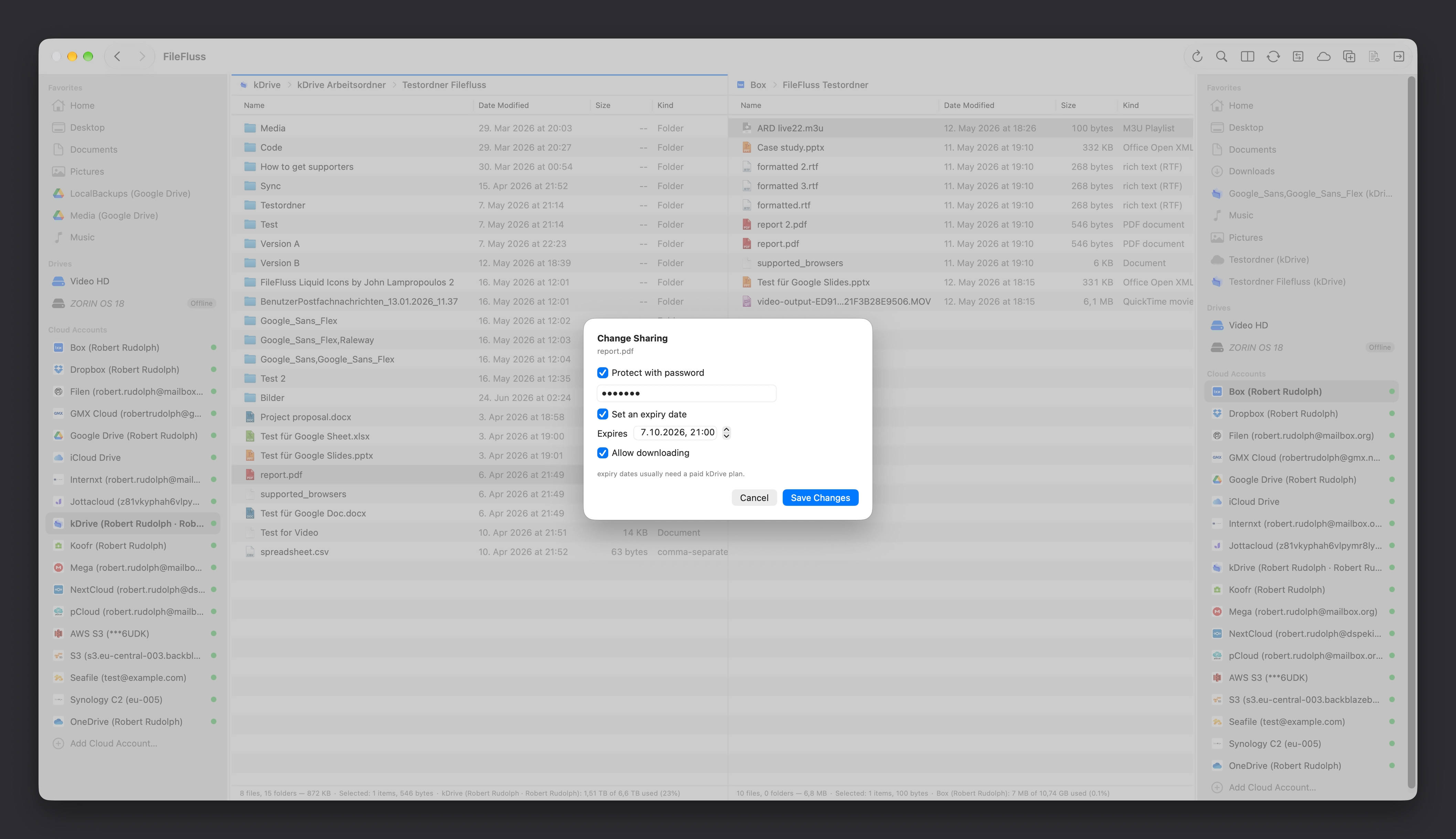
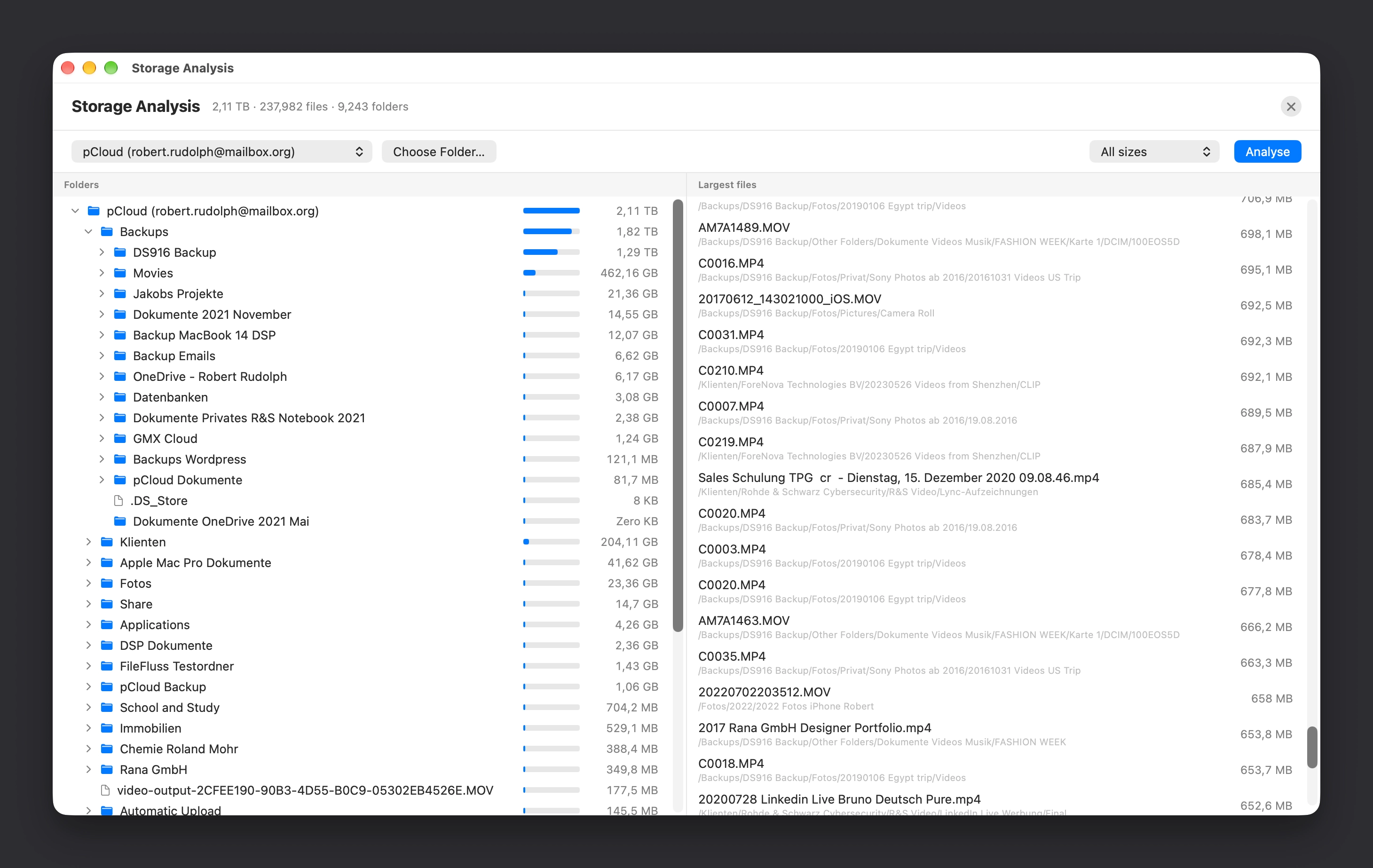
How to install FileFluss on a Mac
- Get OpenDMG. It is a free app store for open source Mac apps. Download OpenDMG.
- Search for FileFluss and press Get. OpenDMG downloads version 1.5.1 from rana-gmbh's own GitHub release.
- Open it. The download is checked against its SHA-256 fingerprint and its signature is checked on your Mac before it lands in Applications.
Updates to FileFluss show up in OpenDMG and install with one button. No account is needed.
Prefer to do it by hand? The developer's file is on GitHub: FileFluss-v1.5.1.dmg (11 MB).
What is new in FileFluss 1.5.1
# FileFluss 1.5.1

A small feature and three fixes, all from reports after 1.5. Thank you for them.

## Open a terminal at the folder you're in

Right-click a folder and choose **Open in Terminal**, or press **⌃⌘T** — rebindable like every other command in Settings → Keyboard.

One selected folder opens that folder; a selected file, no selection, or several items open the folder you're looking at, the same way Finder decides it.

It works on cloud accounts too. A terminal can only open a folder that exists on this Mac, so an account that isn't mounted yet offers to mount itself first and then opens inside the volume.

**Which terminal** is up to you, in Settings → General: Terminal by default, with iTerm, Ghostty, kitty, WezTerm and Warp offered when they're installed, and *Choose…* for anything else.

## Fixes

- **Other partitions on your built-in disk now appear under Drives.** The sidebar listed external and network drives only, so a second partition or APFS volume on the internal SSD showed up nowhere and couldn't be opened at all. The startup volume, macOS's own volumes and Time Machine's local snapshots stay hidden, as before. Thanks to Bernd for reporting it.
…
More System Tools apps
-
 PearcleanerApp Cleaner and Uninstaller Tool
-
 OpenInTerminalFinder toolbar tool for opening the current folder in a terminal
-
 PureMacFree open-source system cleaner with privacy protection
-
 DockDoorWindow peeking for macOS
-
 LatestApp update checker that notifies you of available updates for installed applications
-
 DorsoPosture reminder that progressively blurs your screen when you slouch