

FaceUnlock for Mac
Unlock your computer with face recognition — free, offline, no extra hardware needed.
By HasBrain. Free and open source, MIT licence.
FaceUnlock at a glance
- Version
- 1.1.0
- Released
- 18 July 2026
- Download size
- 75 MB
- Works on
- Apple silicon and Intel
- Licence
- MIT
- Category
- Security and Privacy
- Developer
- HasBrain
- GitHub stars
- 93
About FaceUnlock
Your face unlocks your Mac. 100% on-device.
Screenshots
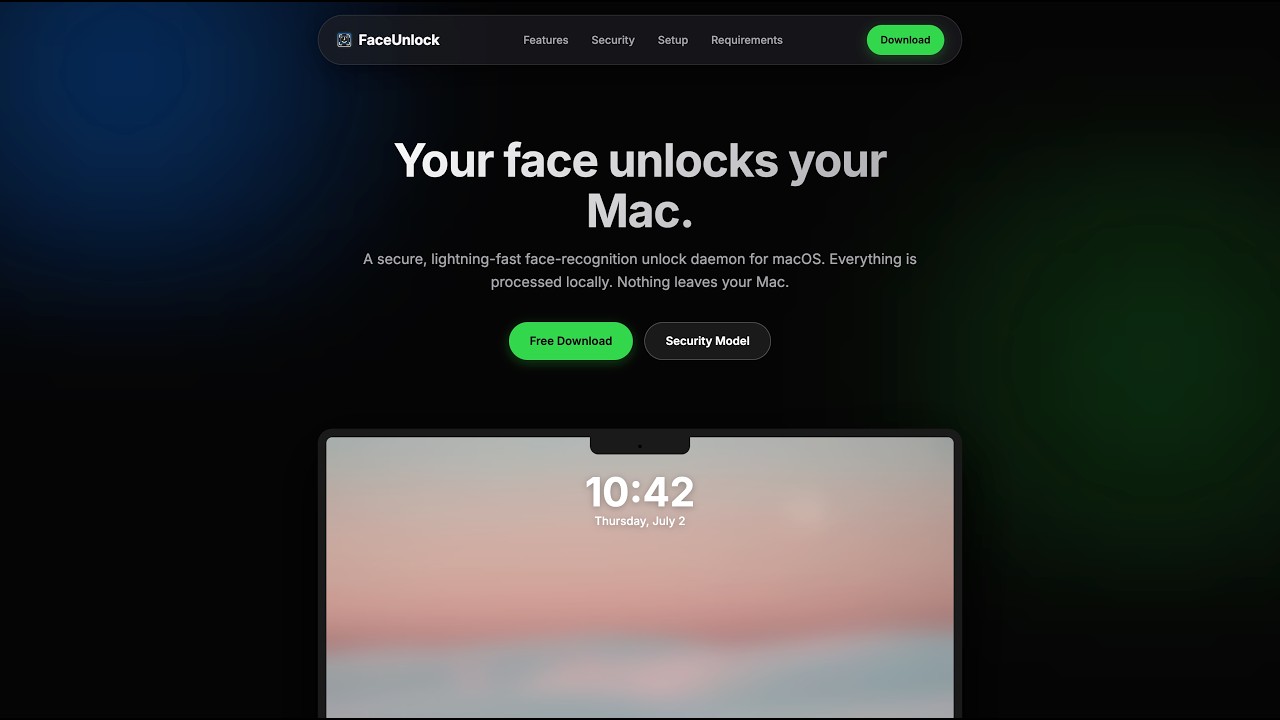
How to install FaceUnlock on a Mac
- Get OpenDMG. It is a free app store for open source Mac apps. Download OpenDMG.
- Search for FaceUnlock and press Get. OpenDMG downloads version 1.1.0 from HasBrain's own GitHub release.
- Open it. The download is checked against its SHA-256 fingerprint and its signature is checked on your Mac before it lands in Applications.
Updates to FaceUnlock show up in OpenDMG and install with one button. No account is needed.
Prefer to do it by hand? The developer's file is on GitHub: FaceUnlock.zip (75 MB).
What is new in FaceUnlock 1.1.0
**Fixed: "The application can't be opened" & Keychain errors**

v1.0.0 was signed with a provisioning profile that expired after 7 days, causing macOS to block the app entirely. This release fixes the signing permanently - no more expiry, no more blocked launches.

Also fixed:
- Touch ID now correctly prompts on every app launch
- Universal binary (Apple Silicon + Intel)

**Security hardening**

- Authoritative lock-state check before password injection uses CGSessionCopyCurrentDictionary (can't be spoofed by user-session apps) in addition to the notification-based flag.
- Pre-injection lock re-check - closes the race between "face matched" and "password typed" if the screen state changed during the scan.

**Upgrading from v1.0.0?**

You may see a keychain access prompt once after upgrading. Click "Always Allow" on both prompts, then re-enter your Mac password in the app's Settings tab.

If your previous enrollment was working fine, you can keep using it. If you notice accuracy has dropped in different lighting, Reset → Capture for a fresh enrollment (which now uses the new 5-point alignment and 2-second stable capture). Then use Add Captures across different lighting over the next few days for full robustness.
More Security and Privacy apps
-
 GlanceUnlock your Mac at a glance through on-device face recognition in a dynamic island-style…
-
 FaceGateLock sensitive apps behind Face ID, Touch ID, or a password — all processed on-device
-
 SentrySecurity monitor that alerts on activity while you're away
-
 TouchBridgeBiometric authentication tool using phone, watch, or browser for sudo and unlock
-
 MergenCIS benchmark security audit tool that checks 85 controls and auto-fixes most failures
-
 TracexySession-based network intelligence — capture live traffic or open saved captures, then…