
Digisensus Recorder for Mac
Bot-free call recorder for Zoom, Meet, Teams, and FaceTime, with speaker transcripts and AI notes.
By Digisensus. Free and open source, GPL-3.0 licence.
Digisensus Recorder at a glance
- Version
- 1.5.0
- Released
- 23 November 2026
- Download size
- 6.5 MB
- Works on
- Apple silicon and Intel
- Licence
- GPL-3.0
- Category
- Audio and Music
- Developer
- Digisensus
- GitHub stars
- 21
About Digisensus Recorder
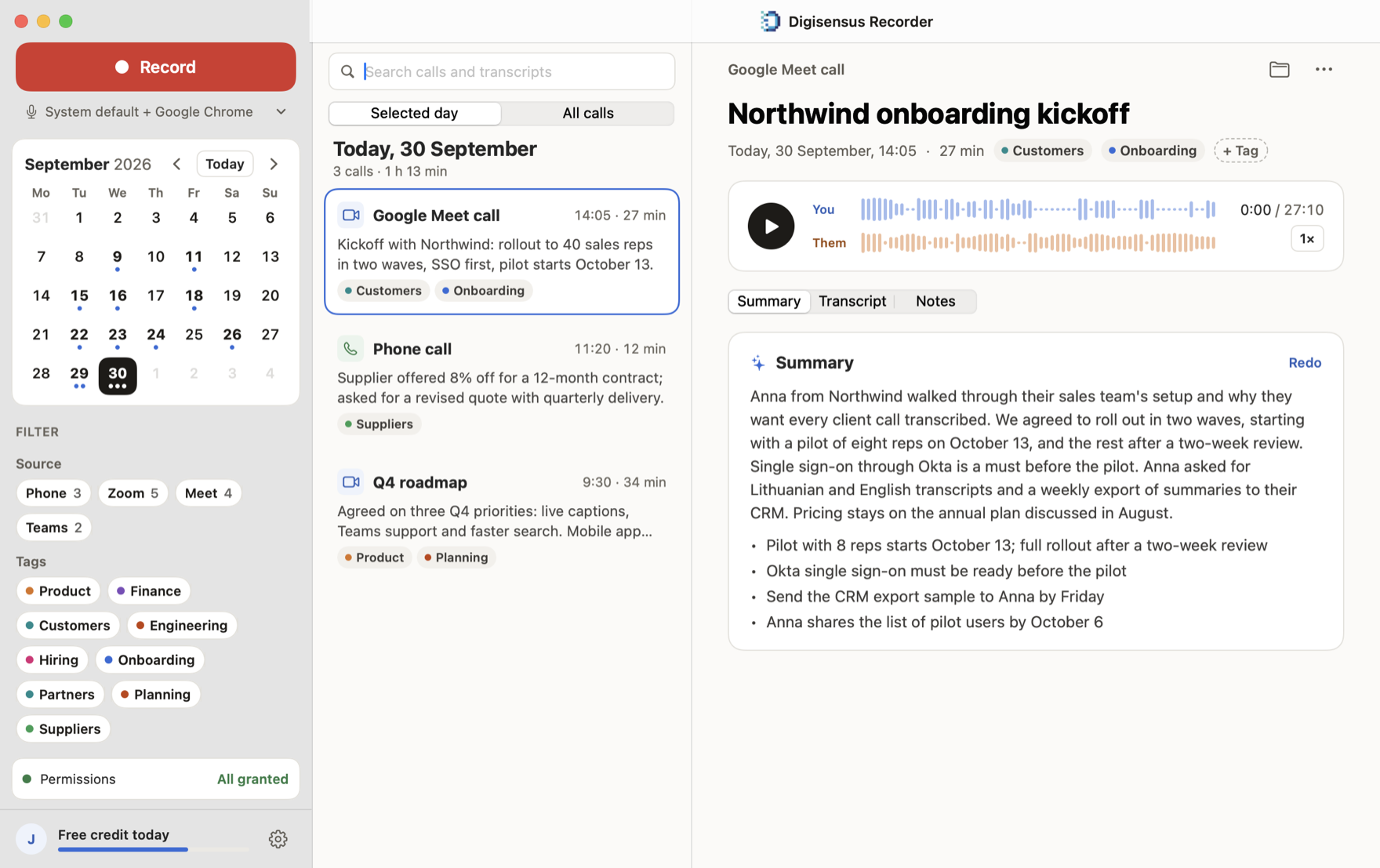
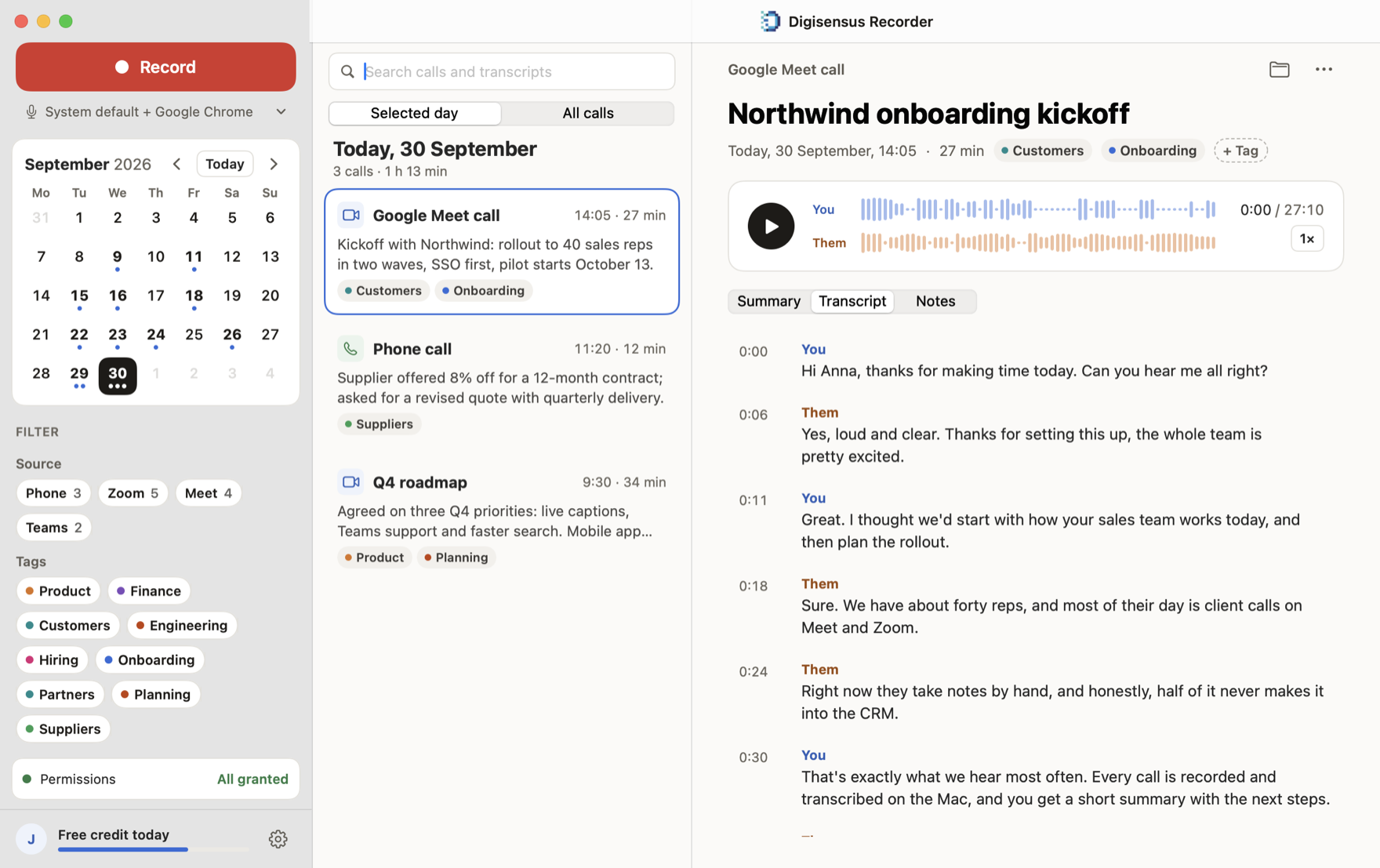
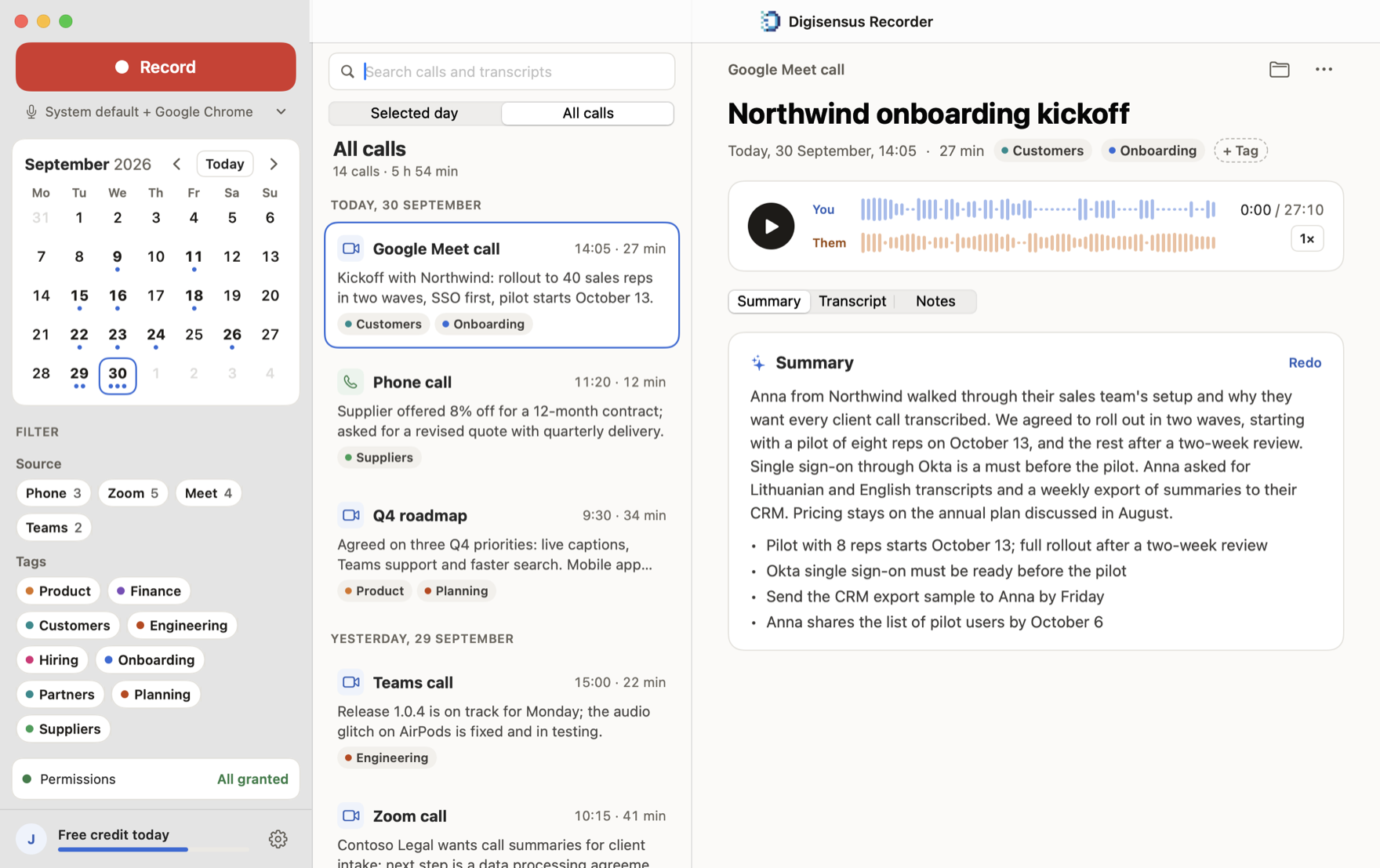
Free, open source call recorder and bot-free AI meeting note taker for Mac: record Zoom, Meet, Teams, FaceTime, WhatsApp and phone calls, get transcripts and meeting notes.
Screenshots

How to install Digisensus Recorder on a Mac
- Get OpenDMG. It is a free app store for open source Mac apps. Download OpenDMG.
- Search for Digisensus Recorder and press Get. OpenDMG downloads version 1.5.0 from Digisensus's own GitHub release.
- Open it. The download is checked against its SHA-256 fingerprint and its signature is checked on your Mac before it lands in Applications.
Updates to Digisensus Recorder show up in OpenDMG and install with one button. No account is needed.
Prefer to do it by hand? The developer's file is on GitHub: Digisensus-Recorder-1.5.0-115.dmg (6.5 MB).
What is new in Digisensus Recorder 1.5.0
## Who said what

- When several people speak on the other side of a call, a transcript made with a Digisensus account now tells them apart as **Speaker 1**, **Speaker 2** and so on.
- Click a speaker's label in the transcript to type their name. It replaces the label wherever that person speaks in the call.
- Summaries fill in a name when the call makes it clear, for example when someone introduces themselves. A name you typed is never replaced.
- Copied and exported transcripts, the `recorder` command and AI agents use the same names.

## Search and follow the transcript

- Search inside a transcript: **⌘F** focuses the search field, **Return** or **⌘G** goes to the next match, **⇧⌘G** to the previous one, and **Esc** clears it.
- While a recording plays, the line being spoken is highlighted and the transcript scrolls with it. Scroll away to read on your own, then click **Follow playback** to return.
- Click a time to play from that line.

## Other

- The **Permissions** step of the walkthrough asks for the microphone and for system audio recording when you press **Continue**.
- The "Help improve Digisensus speech recognition" setting is removed, along with the clause behind it in the Terms of Service: your recordings are not used to train models.

## Verify the download
…
More Audio and Music apps
-
 MonitorControlAdjust external monitor settings
-
 FluidVoiceVoice-to-text app with AI enhancement
-
 VoiceInkReal-time speech-to-text app
-
 eqMacSystem-wide audio equalizer and volume mixer
-
 LyricsXDisplay lyrics for iTunes/Spotify
-
 FreeFlowPush-to-talk speech-to-text tool that inserts polished transcripts into any app