
SpaceMap for Mac
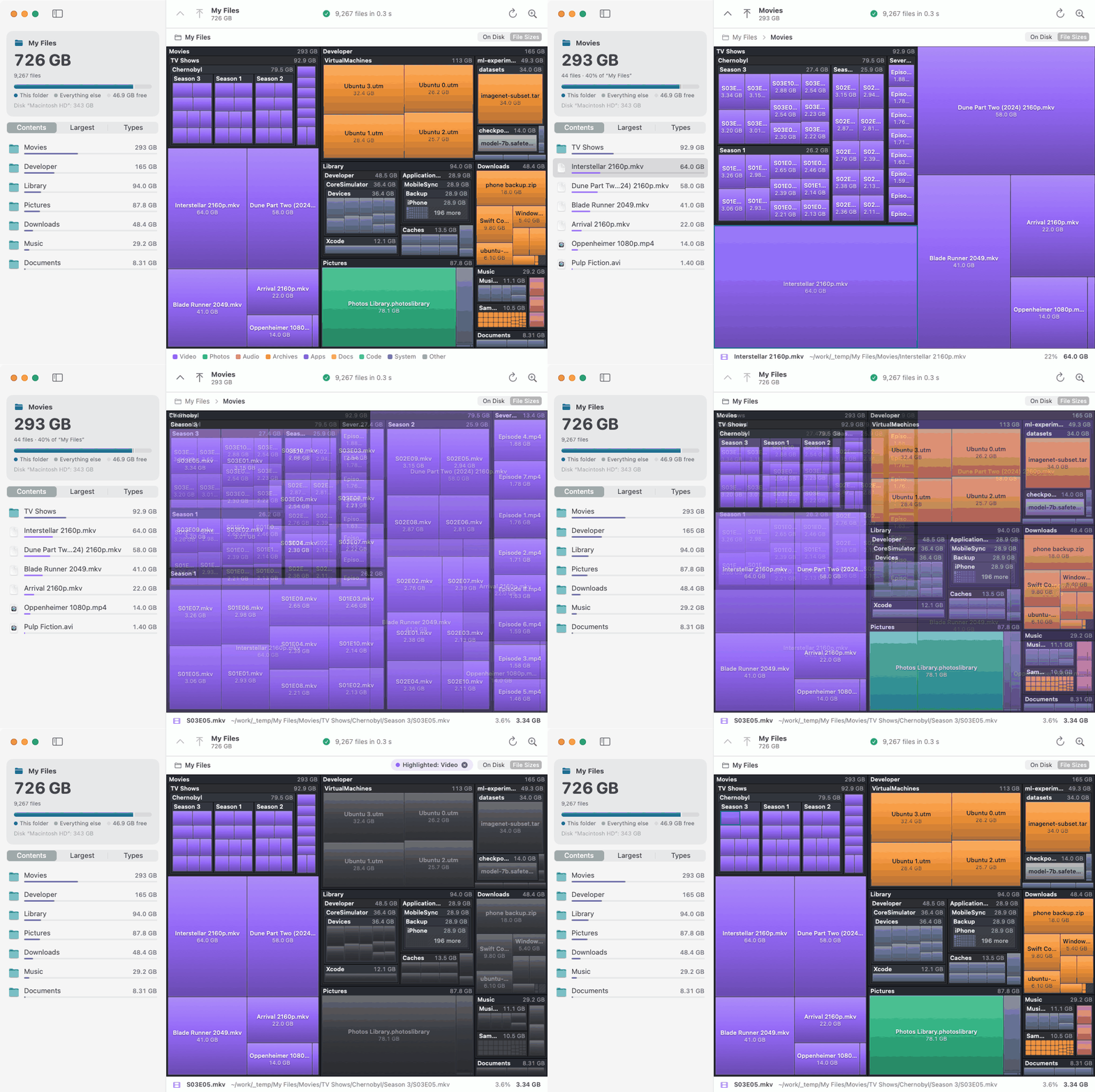
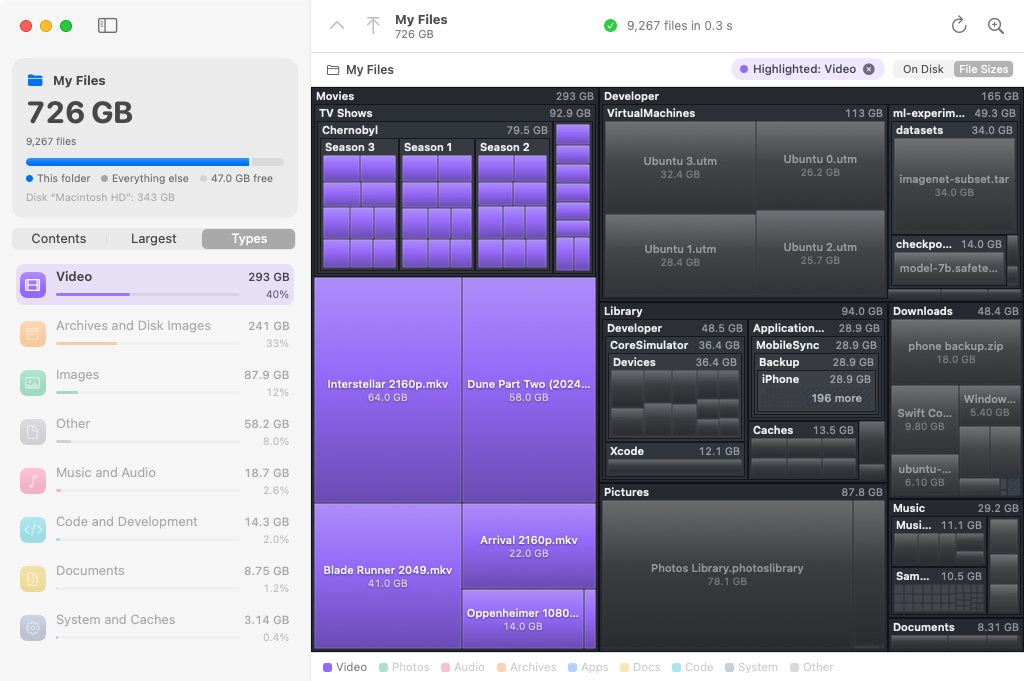
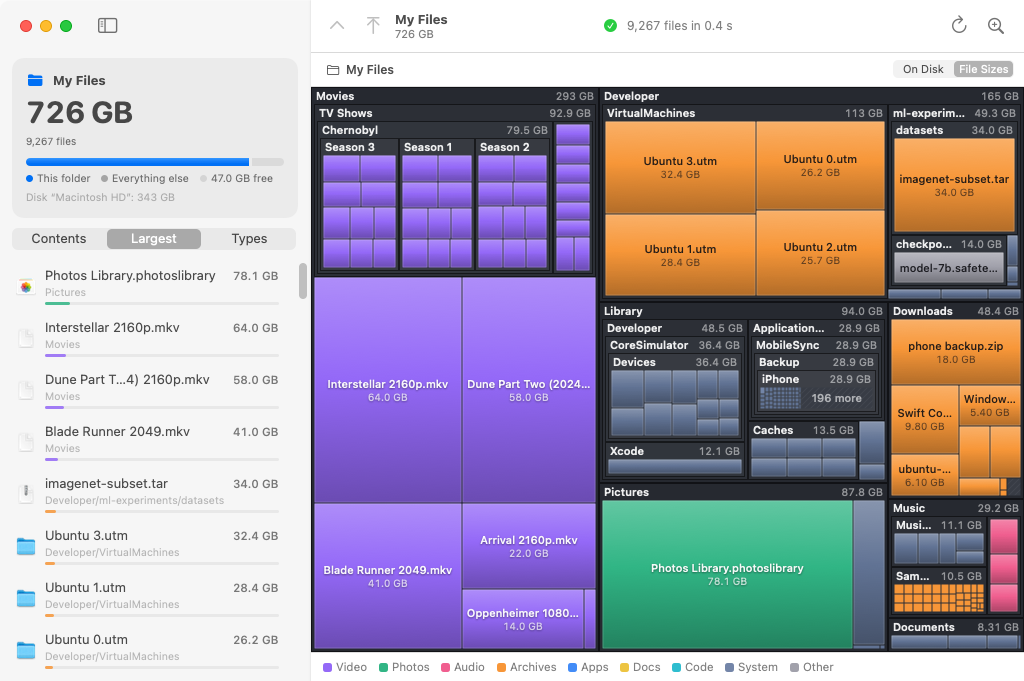
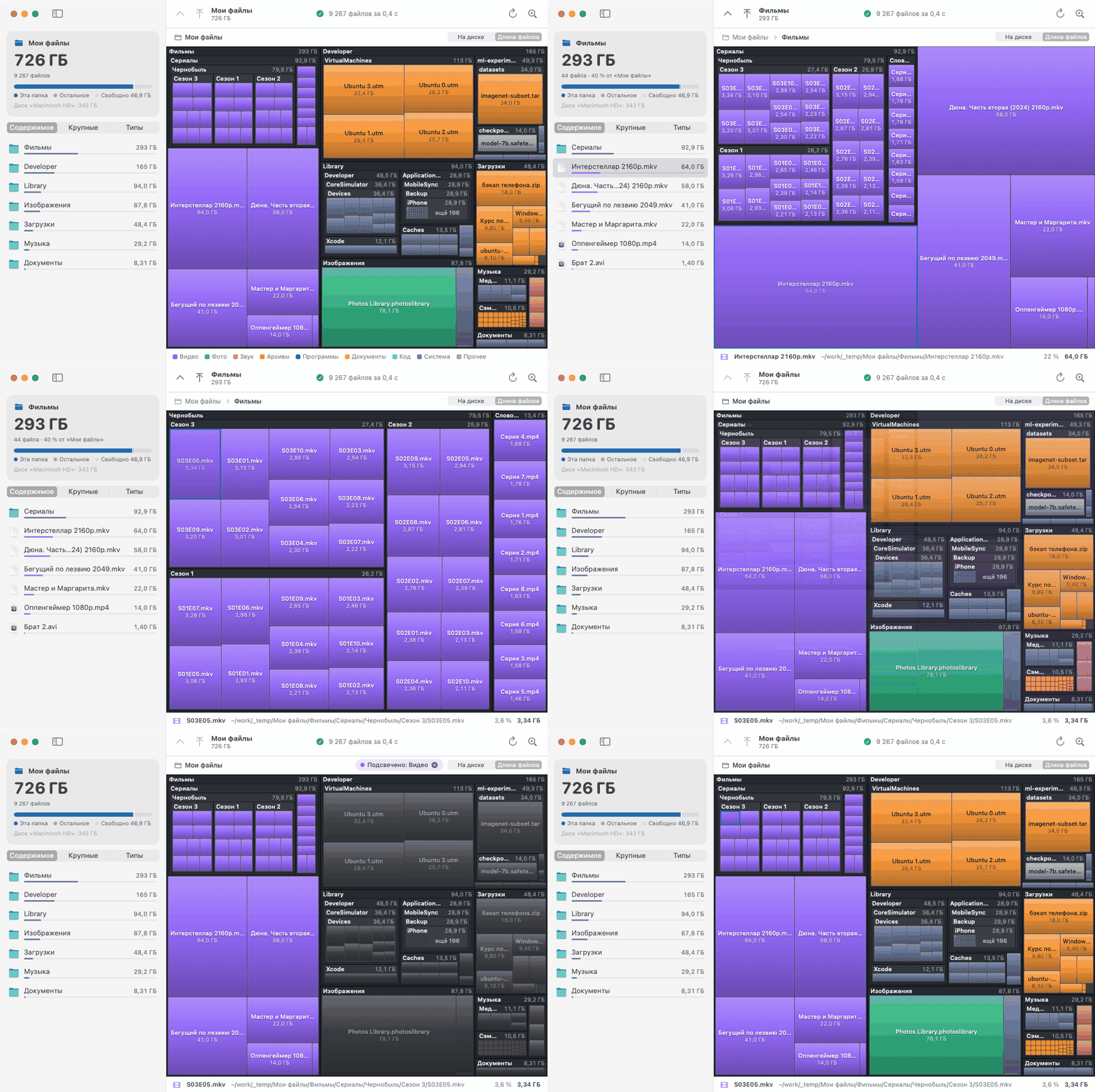
Disk analyzer with a zoomable treemap that fills in as scans run.
By renkagod. Free and open source, MIT licence.
SpaceMap at a glance
- Version
- 1.1.0
- Released
- 22 October 2026
- Download size
- 1008 KB
- Works on
- Apple silicon and Intel
- Licence
- MIT
- Category
- Utilities
- Developer
- renkagod
- GitHub stars
- 8
About SpaceMap
See what is eating your Mac's disk on a map you can walk through. Native SwiftUI app in English and Russian.
Screenshots
How to install SpaceMap on a Mac
- Get OpenDMG. It is a free app store for open source Mac apps. Download OpenDMG.
- Search for SpaceMap and press Get. OpenDMG downloads version 1.1.0 from renkagod's own GitHub release.
- Open it. The download is checked against its SHA-256 fingerprint and its signature is checked on your Mac before it lands in Applications.
Updates to SpaceMap show up in OpenDMG and install with one button. No account is needed.
Prefer to do it by hand? The developer's file is on GitHub: SpaceMap-macOS.zip (1008 KB).
What is new in SpaceMap 1.1.0
**Download `SpaceMap-macOS.zip` below**, unzip it and drag `SpaceMap.app` into Applications.
Requires macOS 13 Ventura or later, Apple Silicon or Intel.

The app is not signed with an Apple certificate, so macOS blocks the first launch. To allow it,
open System Settings → Privacy & Security and click "Open Anyway". Or run one command in Terminal:

```bash
xattr -cr /Applications/SpaceMap.app
```

The interface is in English and Russian and follows the system language; SpaceMap → Language
switches it. Features and instructions are in the [README](https://github.com/renkagod/spacemap#english).

---

**Скачай `SpaceMap-macOS.zip` ниже**, распакуй и перетащи `SpaceMap.app` в «Программы».
Нужна macOS 13 Ventura или новее, Apple Silicon и Intel.

Приложение не подписано сертификатом Apple, поэтому при первом запуске macOS его заблокирует.
Разблокировать: Системные настройки → Конфиденциальность и безопасность → «Всё равно открыть».
Или одной командой в Терминале (та же, что выше).

Интерфейс на русском и английском, язык берётся из системы, сменить его можно в меню
SpaceMap → Язык. Подробности и управление описаны в [README](https://github.com/renkagod/spacemap#%D1%80%D1%83%D1%81%D1%81%D0%BA%D0%B8%D0%B9).
More Utilities apps
-
 VorssaintAn open-source, free, and local toolkit that integrates functions such as preventing…
-
 BetterDisplayDisplay management tool with HiDPI scaling, PiP, and EDID controls
-
 MosSmooth your mouse's scrolling and reverse the mouse scroll direction
-
 EasydictmacOS instant translator — type/select/screenshot, multi-service, zero setup
-
 OpenHaystackOpen-source tracker for finding Bluetooth devices through Apple's Find My network
-
 OrkasOrkas is an open-source (MIT), local-first AI team for your desktop: a Commander turns…