

Right Folder for Mac
Folders open in Finder, recent folders and favorites beside every Open and Save dialog, one click or a shortcut away.
By stanczykwyatt. Free and open source, MIT licence.
Right Folder at a glance
- Version
- 0.1.0
- Released
- 3 November 2026
- Download size
- 1.1 MB
- Works on
- Apple silicon and Intel
- Licence
- MIT
- Category
- System Tools
- Developer
- stanczykwyatt
- GitHub stars
- 2
About Right Folder
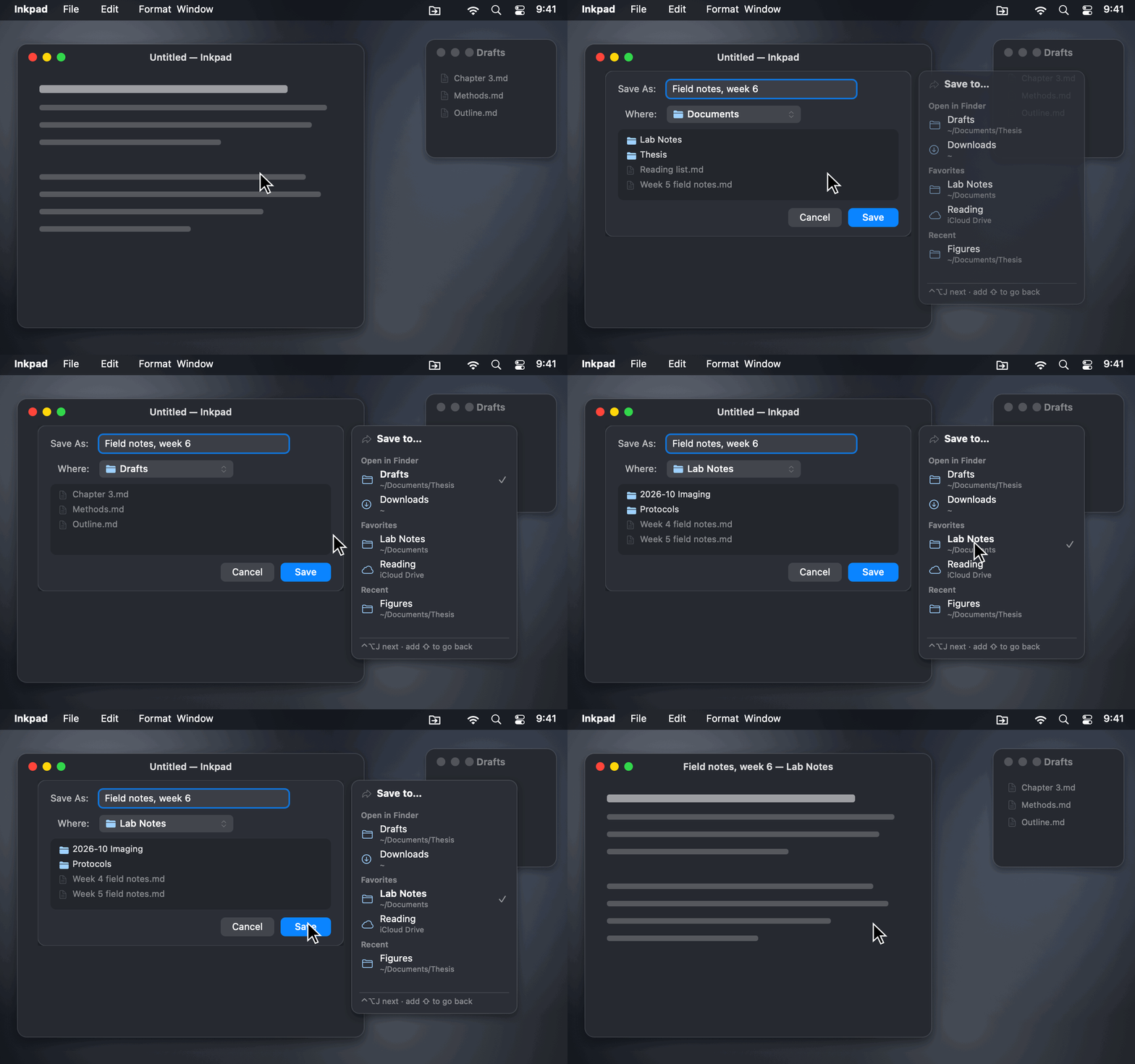
Mac Open and Save dialogs, in the right folder: the folders open in Finder, recent folders and favorites beside every dialog, one click or ⌃⌥J away. A free, open-source Default Folder X alternative. No internet access.
Screenshots
How to install Right Folder on a Mac
- Get OpenDMG. It is a free app store for open source Mac apps. Download OpenDMG.
- Search for Right Folder and press Get. OpenDMG downloads version 0.1.0 from stanczykwyatt's own GitHub release.
- Open it. The download is checked against its SHA-256 fingerprint and its signature is checked on your Mac before it lands in Applications.
Updates to Right Folder show up in OpenDMG and install with one button. No account is needed.
Prefer to do it by hand? The developer's file is on GitHub: Right-Folder.zip (1.1 MB).
What is new in Right Folder 0.1.0
First release of Right Folder, a free, open-source menu bar app that puts Open and Save dialogs in the right folder.

**Early release:** the dialog handling is covered by 138 off-screen tests, but it hasn't been tried on a real Open or Save dialog yet. If the panel doesn't show up or a jump doesn't land, please open an issue.

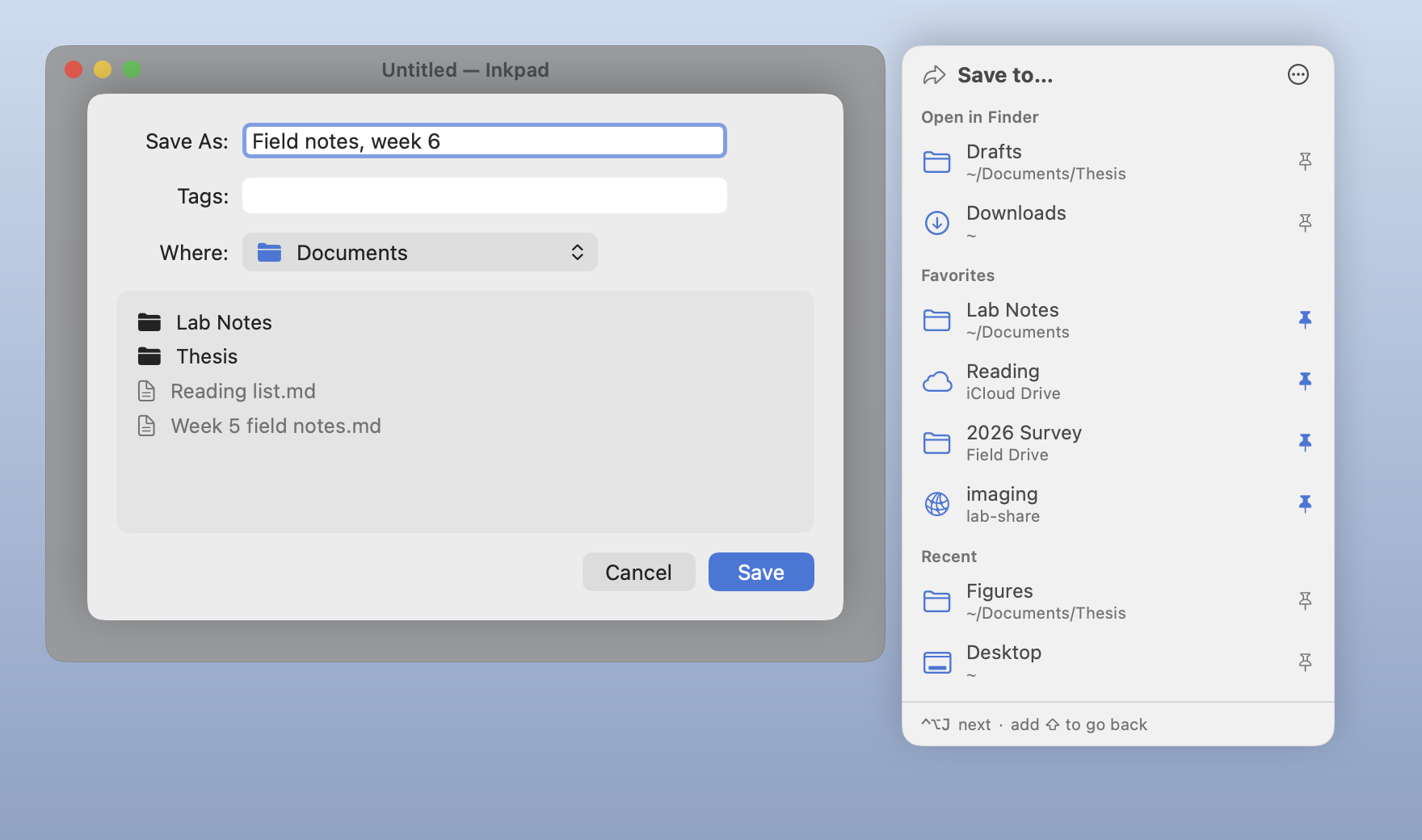
- **A panel beside every Open and Save dialog,** in any app that uses the standard macOS dialogs, as sheets or windows.
- **The folders open in Finder,** front window first, then your favorites, then the folders you've used lately.
- **One click sends the dialog there,** through the dialog's own Go to Folder, the way you'd do it with ⇧⌘G.
- **⌃⌥J steps through the folders,** and ⌃⌥⇧J goes back. The shortcut only exists while a dialog is open.
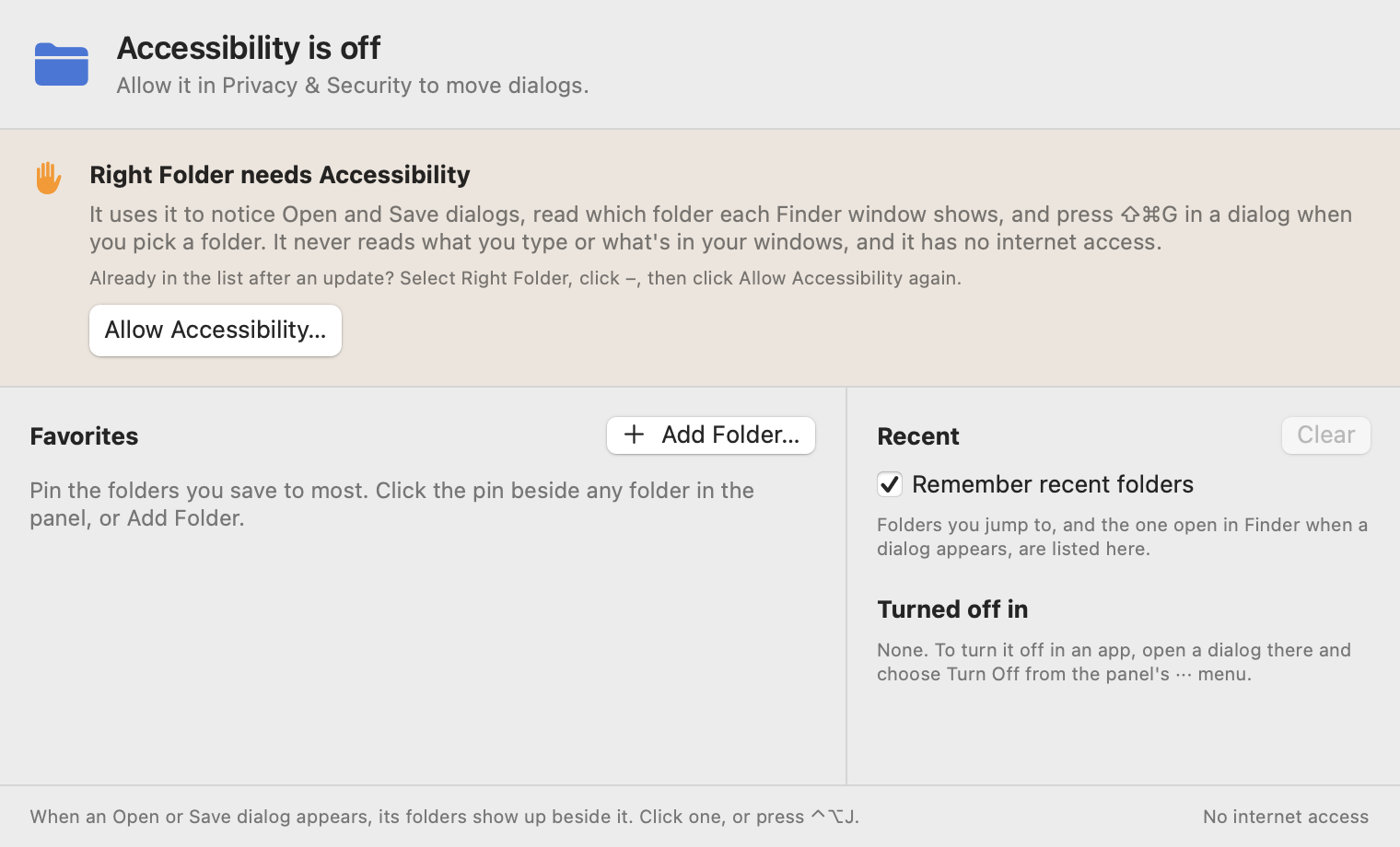
- **Favorites** you pin from the panel, the menu or a folder picker, which follow a folder when it's renamed or moved.
- **iCloud Drive, external drives and network shares,** named the way Finder names them. A drive that isn't plugged in, or a server you're not connected to, is marked rather than waited on.
- **Turn it off in any app,** pause it everywhere, or stop it remembering recent folders, which clears them.
- **Private by design:** Accessibility is the only permission, there are no entitlements, it has no internet access, and it never reads your files, your windows' text or what you type.
…
More System Tools apps
-
 PearcleanerApp Cleaner and Uninstaller Tool
-
 PureMacFree open-source system cleaner with privacy protection
-
 OpenInTerminalFinder toolbar tool for opening the current folder in a terminal
-
 DockDoorWindow peeking for macOS
-
 DigUpSemantic search app that finds files by their contents
-
 LatestApp update checker that notifies you of available updates for installed applications